Compliance dashboard and requirements
Review the correct lab
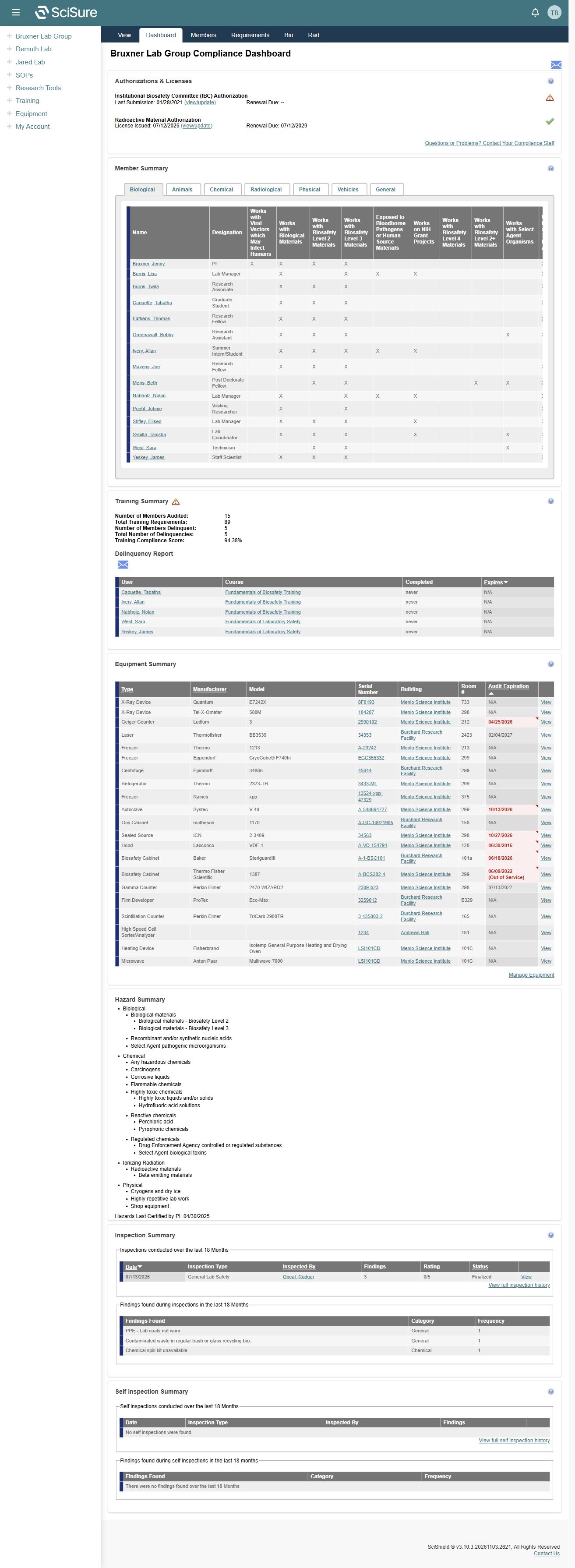
Open Compliance Dashboard under a lab in the sidebar, or select a lab in the home page's Compliance Summary for control and use View Dashboard. The dashboard heading identifies the lab.
Read dashboard sections
| Section | What to inspect | Useful next action |
|---|---|---|
| Authorizations & Licenses | IBC authorization submission and renewal information; radioactive material license issue and renewal information | Use the relevant (view/update) link to inspect the source record |
| Member Summary | People, designations, and job activities grouped into Biological, Animals, Chemical, Radiological, Physical, Vehicles, and General tabs | Check the person's applicable activities before investigating requirements |
| Training Summary | Members audited, total training requirements, members delinquent, number of delinquencies, and compliance score | Read the Delinquency Report |
| Delinquency Report | Person, course, completion, and expiration | Open the person or course to investigate |
| Equipment Summary | Asset identity, location, and audit expiration | Open View or the serial number |
| Hazard Summary | Lab hazards organized by category and last PI certification date | Review the appropriate lab registration or contact the PI |
| Inspection Summary | Recent inspections, findings, ratings, status, and finding frequency | Open the inspection or full history |
| Self Inspection Summary | Recent self inspections and finding frequency | Open the full self inspection history |
The captured dashboard reports 15 members audited, 89 training requirements, 5 delinquent members, and a 94.38% training compliance score. These are examples of the displayed metrics, not current targets or a guarantee that all aspects of the lab are compliant.
Investigate overdue training
- Read the Delinquency Report.
- Identify the person and course.
- Open the source record and compare completion and expiration dates.
- Use the Course Directory to find the relevant learning or classroom option.
- After completion is recorded, re-open the source record and dashboard to confirm the status changed.
In the captured report, never appears in the completion column for some delinquent courses and N/A appears in the expiration column. Interpret each value in its column context.
Review the Requirement Summary
Open Requirements in the upper lab navigation. This provides a separate list containing Requirement Name, Requirement Type, Applies To, Required For, and Next Required.
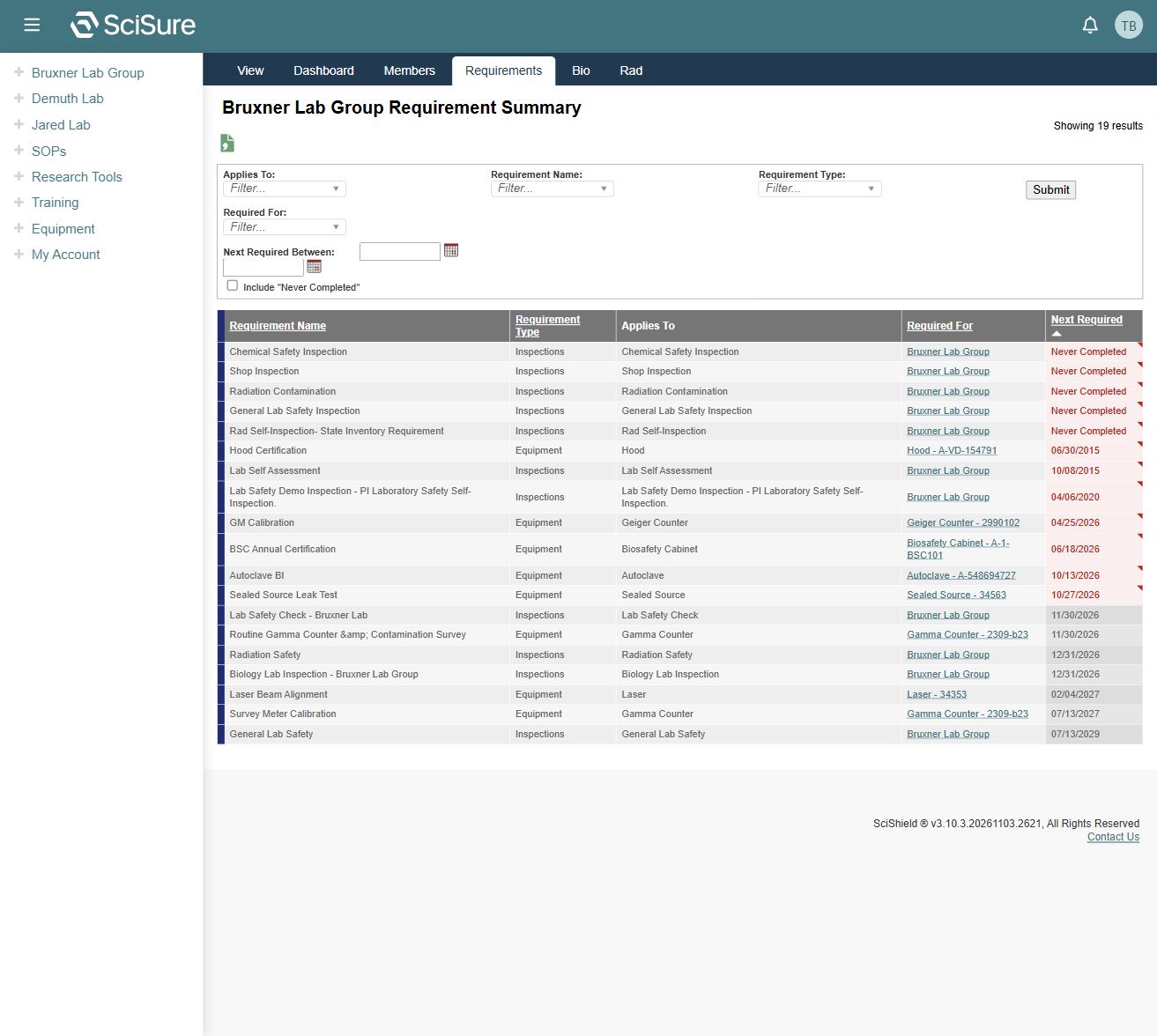
Filters include Applies To, Requirement Name, Requirement Type, Required For, and Next Required Between. The Include "Never Completed" checkbox lets you include requirements that do not have a completion date when using date-oriented filtering.
The inspected list includes both inspection and equipment requirements. For equipment, the Required For value identifies the particular asset. For inspections, it identifies the lab. Use that distinction to route follow-up correctly.
Dates, missing values, and conflicts
- Never Completed means the requirement list has no completion recorded for that requirement.
- N/A or -- should not be interpreted as approval. Inspect the underlying record if the meaning matters.
- Dashboard inspection summaries use a displayed last 18 months window. Older inspection history can exist even when the recent summary is empty.
- A captured radioactive license date differed by one day between the compliance dashboard and Rad Summary. Compare source records and ask compliance staff to resolve discrepancies; do not infer which date governs.
The dashboard summarizes recorded application data. Authorization decisions and edits were not performed for this guide.
Related: Inspections, Equipment, Biological safety, Radiological management.