Getting started
Open the application
The inspected development instance is at http://earth.127.0.0.1.nip.io:8083/frontpage_panel. It is already signed in for this documentation capture. On another deployment, use the address and sign-in process provided by your institution. Sign-in and account recovery were not exercised in this session.
The home page is titled Scientific Management Platform. The SciShield logo in the header links home. Toggle navigation expands or collapses the sidebar. The header also contains Notifications and User menu controls.
Use the sidebar
Select a section's button to expand its links. Each lab has its own section. The inspected account belongs to three labs, so checking the lab name before opening a record matters.
| Section | Available links |
|---|---|
| A lab, such as Bruxner Lab Group | View Lab Profile, Compliance Dashboard, View Members, Send Lab Message, View Lab Spaces, Bio Summary, Rad Summary, Rad Request, Rad Waste Pickup, Self Inspections, Manage Lab Forms |
| SOPs | Organizational SOPs |
| Research Tools | Announcements, Document Library, External Links, Important Contacts, SDS Search |
| Training | My Training, Course Directory |
| Equipment | My Equipment |
| My Account | Account Settings, individual lab links, Messages, Log out |
Some links depend on the lab: the third lab's menu had fewer entries than the first two. Absence of a link does not establish that the feature is disabled institution-wide.
Read the home page
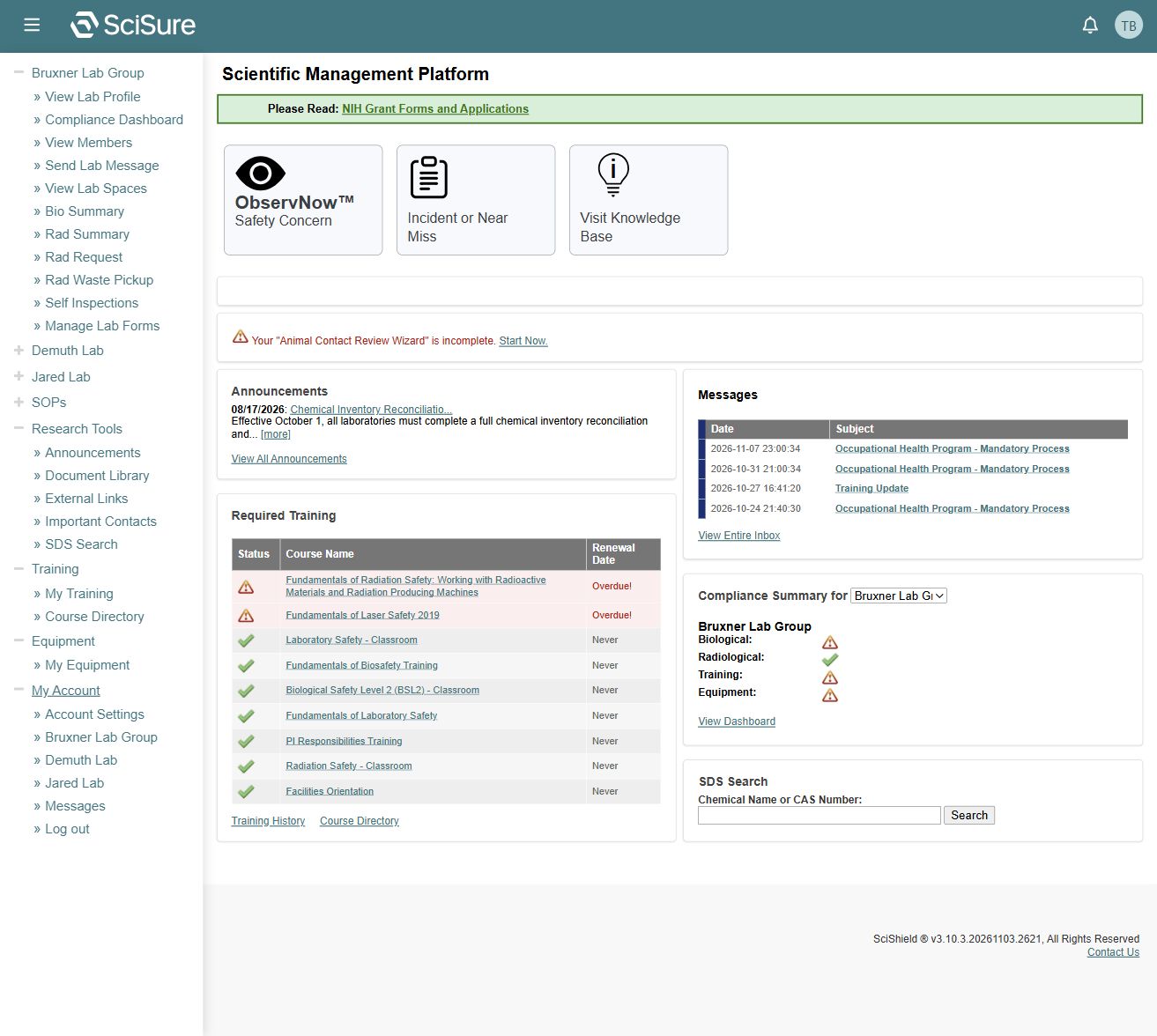
Report choices. The top of the home content provides ObservNow™ Safety Concern, Incident or Near Miss, and Visit Knowledge Base links. Reporting forms are explained in Safety reporting. The knowledge base is a separate integration and was not followed.
Needs Attention. A personal setup item may appear with Start Now. The captured example concerns an incomplete Animal Contact Review Wizard. It is specific to the account; its questions and submission were not inspected.
Announcements. Select an announcement title or [more] to read it. View All Announcements opens the announcement list. Announcement dates and instructions reflect institutional content.
Required Training. Each row contains a status, course name, and renewal date. The captured page shows both Overdue! and completed rows. Never appears as the renewal value on some completed courses; it is not the same as a course never having been completed. Use My Training to inspect completion dates.
Messages. Subject links open individual messages; View Entire Inbox opens messaging. The captured home page and the separate inbox did not agree on the number of messages. See Troubleshooting.
Compliance Summary for. Choose a lab and use the Biological, Radiological, Training, and Equipment status links or View Dashboard. Confirm the displayed lab heading before following an issue.
SDS Search. The home page offers a chemical name or CAS number field. Research Tools also provides an SDS screen with advanced filters.
Work with tables
Many tables offer sortable column headers, filters, and pagination. Sortable headers are links or have a sorting label. A result count such as “Showing 1–25 of 34 results” means additional records are on another page.
An empty table can mean no matching records, no records for this context, or a loading/integration problem. Clear filters and confirm the lab before concluding that nothing exists.
Accessible navigation
The application exposes Skip to navigation and Skip to main content links. The documentation also has a keyboard-accessible skip link, a labeled search input, visible focus styles, and text links to all guides. Screenshots supplement the written steps.