Training and courses
Check required training
The home page's Required Training table shows course status and renewal dates. Select a course name to open its sessions or course page. An Overdue! entry calls attention to a required course; open its details before deciding how to complete it.
The home page also links Training History and Course Directory. The sidebar provides the same general workflows under Training.
Review completion history
- Expand Training.
- Select My Training.
- Confirm the person's name in the heading.
- Use Filter Records By to choose
<All>or Most Recent Only. - Compare Course, Date Taken, Expires, and Certificate.
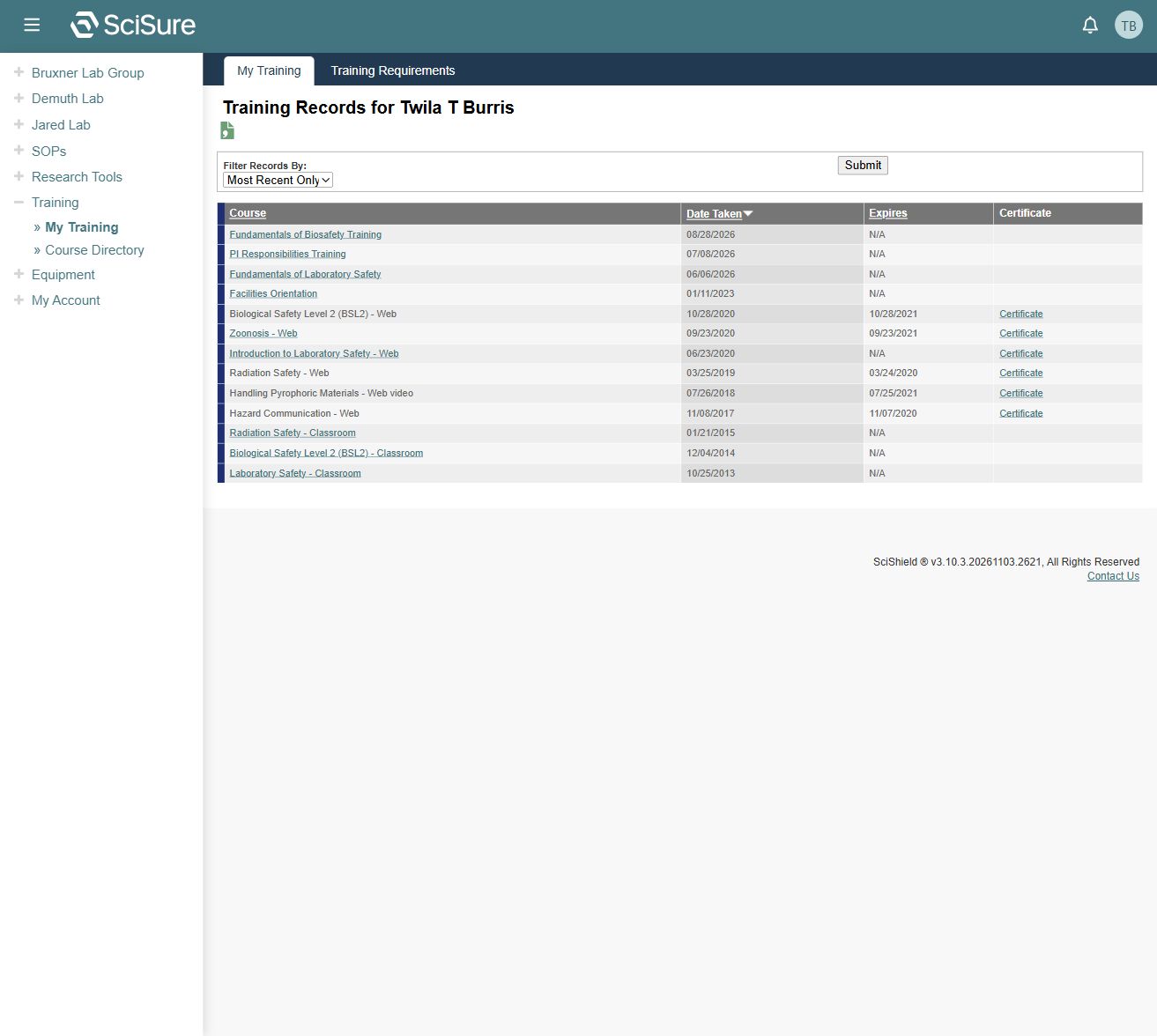
The list has sortable course, completion-date, and expiration-date columns. Most Recent Only is useful when repeated completions make the history difficult to scan; <All> provides historical context.
Select Certificate on a row where that link is present. Some records have no certificate link. A missing link does not itself prove that the course was not completed: check Date Taken. Certificate generation and downloading were not tested during capture.
The secondary Training Requirements link was observed in the training navigation. Its detailed contents were not inspected; the home page and lab dashboard provide verified entry points for required or delinquent training.
Find a course
Select Training → Course Directory. The captured directory groups courses into Biosafety, Facilities, General Lab Safety, and Radiation Safety.
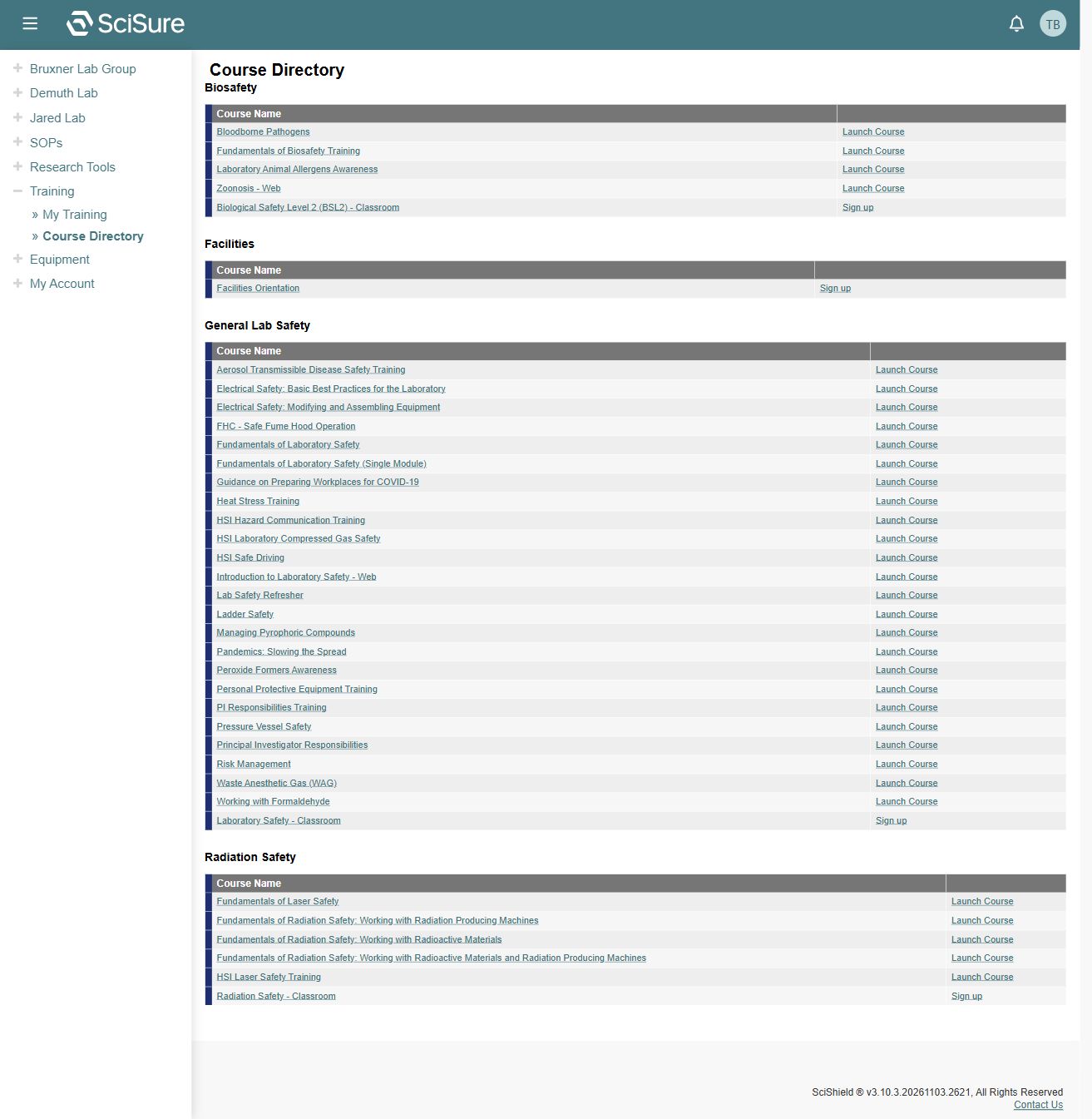
| Action | Intended next step |
|---|---|
| Course name | Read the course detail |
| Launch Course | Open the online learning workflow |
| Sign up | Open classroom session information |
Online courses and classroom courses have different entry actions. This guide inspected the directory and a classroom sessions page, but did not launch learning content, register attendance, take an assessment, or record a completion.
Classroom sessions
- Find the classroom course in the directory.
- Select Sign up.
- Read the course description and prerequisites.
- Review Upcoming Sessions.
- If no sessions are scheduled, use the course manager information shown on that page.
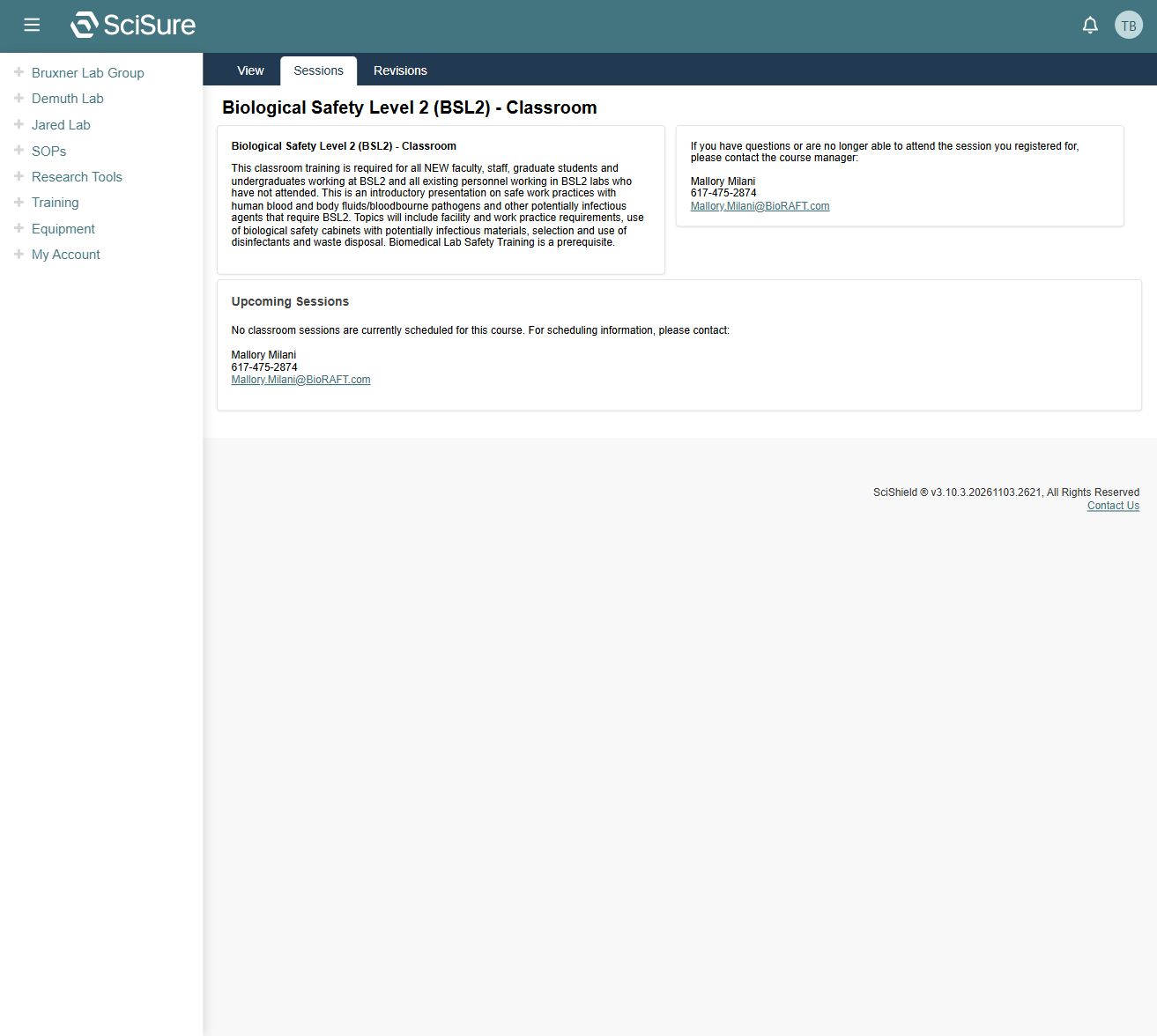
The inspected BSL2 classroom course had no upcoming sessions. Its page explicitly directs users to the course manager for scheduling. The registration controls for a scheduled session therefore remain unverified.
Resolve a missing completion
Compare the course title, training history, and required course entry. A similarly named course may be a different record or delivery format. If a completion or certificate is absent after you expect it to be recorded, contact the course manager or your institution's training team with the course and completion details.
Do not treat a historical certificate alone as proof that the current requirement is satisfied; compare renewal or expiration information as well.
Related: Compliance dashboard, Troubleshooting.