Safety observations, incidents, and near misses
The home page provides two separate reporting entry points: ObservNow™ Safety Concern and Incident or Near Miss. The incident form states that it is for events involving injury or property damage, or events where those nearly occurred. Follow your institution's reporting guidance when selecting a workflow.
The incident page explicitly directs users needing urgent medical attention or other emergency response to contact local emergency services immediately.
ObservNow safety observations
Select ObservNow™ Safety Concern on the home page to open Submit A Safety Observation.
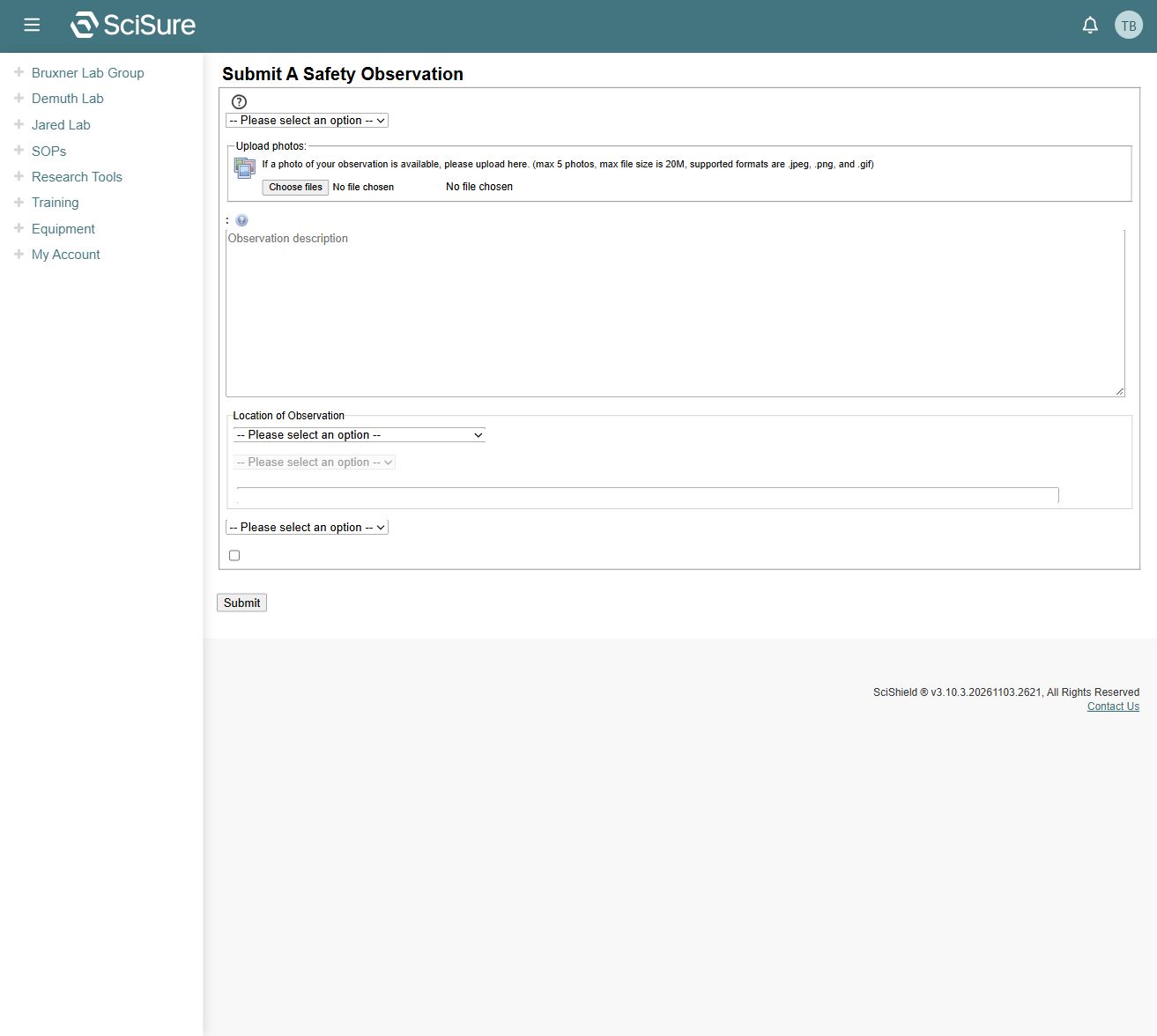
The captured page exposes an observation type selector, photo upload, description area, location controls, another selector, a checkbox, and Submit. Its photo instructions specify a maximum of 5 photos, a displayed 20M file-size limit, and .jpeg, .png, and .gif formats.
Some labels and selector options did not populate correctly in the inspected environment. Observation type, building, and status selectors displayed only placeholders, and the anonymous-submission checkbox lacked a visible label. This guide therefore does not assign unverified meanings to the unlabeled controls or claim that the workflow is ready to submit.
If the same incomplete form appears, reload once and contact support if the labels/options remain missing. Describe what you see rather than guessing values. No observation was entered or submitted during documentation capture.
Incident or Near Miss
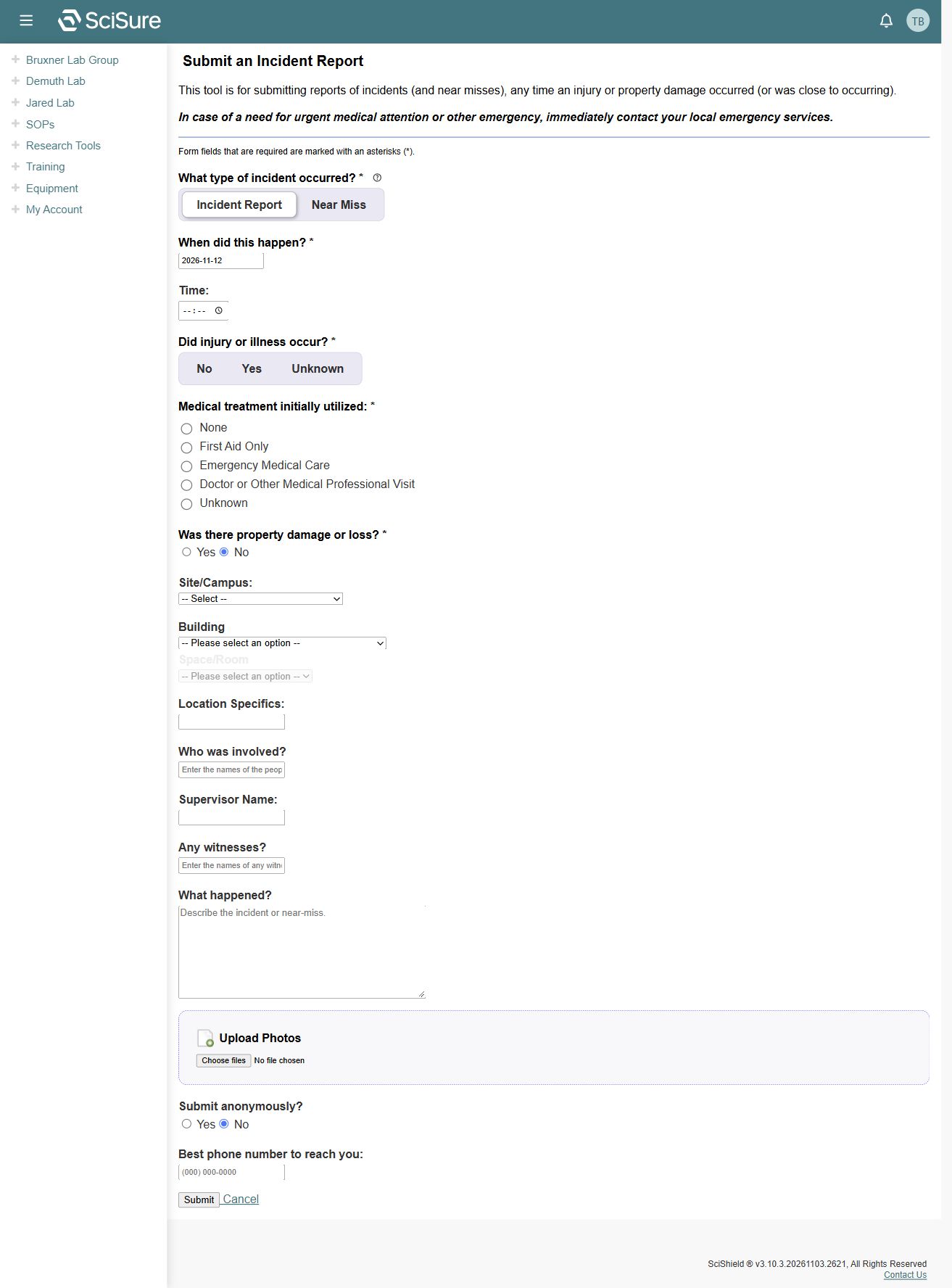
Select Incident or Near Miss on the home page. The page is titled Submit an Incident Report. Wait for the full form to appear: its heading and Submit button can render before the questions finish loading.
Prepare incident information
The inspected form contains these fields:
| Area | Fields and choices observed |
|---|---|
| Event type | Incident Report or Near Miss |
| Timing | When did this happen?; Time |
| Injury or illness | No, Yes, or Unknown |
| Initial medical treatment | None, First Aid Only, Emergency Medical Care, Doctor or Other Medical Professional Visit, or Unknown |
| Property | Whether property damage or loss occurred |
| Location | Site/Campus, Building, Space/Room, Location Specifics |
| People | Who was involved?, Supervisor Name, Any witnesses? |
| Narrative | What happened? |
| Evidence | Upload Photos |
| Reporter | Submit anonymously?; Best phone number to reach you |
The form marks required fields with an asterisk. In the captured initial state, Incident Report is selected, property damage is set to No, anonymous submission is set to No, and the date is populated. Review defaults carefully; they may not describe the event.
Space/Room is initially disabled until the relevant location selection is made. Available buildings and campuses belong to the institution's configuration.
Complete and review a report
- Select Incident Report or Near Miss to match the event.
- Confirm the event date and time, replacing any inappropriate defaults.
- Answer the injury, treatment, and property questions.
- Identify the location and people involved as requested.
- Describe what happened and add relevant photographs if appropriate.
- Review the anonymous-submission choice and contact information.
- Check required fields and the content before choosing Submit.
The visible controls and fields were inspected without entering or submitting a report. Validation messages, photo limits for this incident form, anonymity behavior, delivery, confirmation, editing, and follow-up processing remain unverified. The observation form's upload limits should not be assumed to apply to the incident form.
The page also exposes Cancel. Its destination was a page fragment in the inspected DOM; cancellation behavior was not tested.